
How to upload a custom wrap with the Tesla mobile app
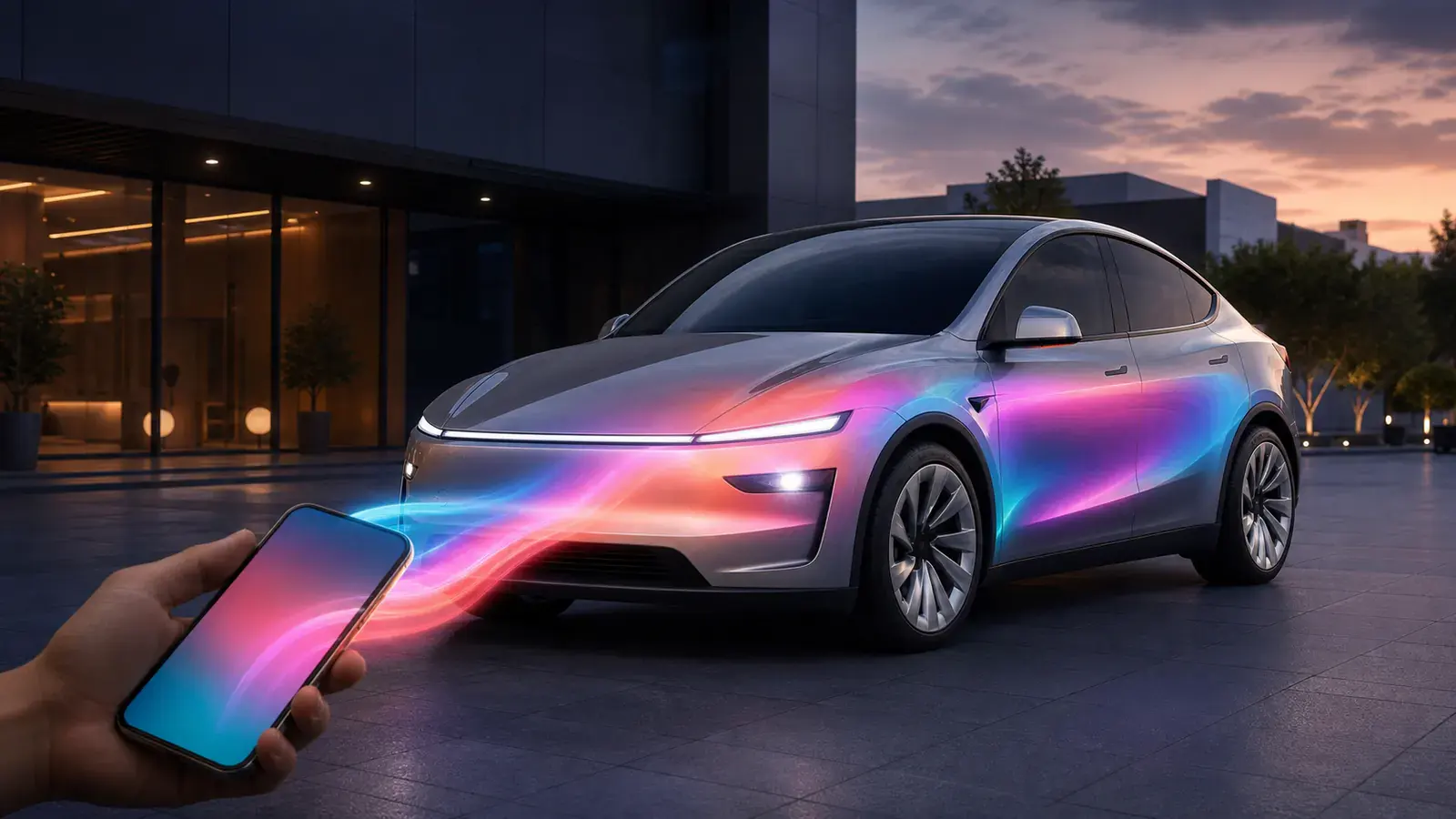
Upload custom wraps from your phone with Tesla App v4.59.0 or later — PNG, size, filename, file-count, preview and USB fallback requirements. Update the Tesla App to 4.59.0+, go to Creations → Wrap → Upload, and choose a compliant PNG: 512×512 to 1024×1024 px, under 1 MB, filename under 30 characters. First confirm the UV template matches your exact Tesla model and version — even a square PNG that passes file checks will map wrongly if it came from another car's template.
Tesla custom wrap upload requirements
A safe filename example is wrap-my-153045.png: short, allowed characters only, a model cue, and less likely to collide with system-added '(1)' suffixes.
How to upload from the Tesla app
Step 1: Create or download a compliant PNG
Find the official template for your model (Tesla's custom-wraps repo publishes templates and requirements). The TeslaWrapskin editor picks the right template automatically; add images, text and shapes, check in 3D, then export a 1024×1024 PNG under 1 MB. From the community Gallery, still verify the exact model version before downloading.
Step 2: Save the PNG to your phone
Download it to Files, Downloads, Photos or anywhere the Tesla App picker can reach. Avoid brackets and special punctuation; rename wrap (1).png to wrap-2.png if needed.
Step 3: Update to Tesla App v4.59.0+
Check in the App Store or Google Play. Features roll out in stages, so a compliant app version is necessary but does not guarantee the entry appears immediately for every model, region and account.
Step 4: Open Creations → Wrap → Upload
Select your vehicle in the Tesla App, open Creations → Wrap → Upload. If there's no entry, check app version, vehicle software, selected vehicle and staged rollout.
Step 5: Choose, preview, upload and apply
Pick the saved PNG and check hood, doors, fenders, roof and bumpers in the preview. Stretching or misalignment means returning to the correct UV template — not forcing a fix in the Tesla App. After upload, select and apply the wrap. The app supports up to 10 uploaded files; delete old ones when full.
Troubleshooting
No Upload button
•Confirm Tesla App 4.59.0+
•Confirm the target vehicle is selected on multi-car accounts
•Install pending vehicle software updates
•Wait for staged rollout — timing varies by model, region and account
App rejects the image
•Confirm it is truly PNG, not a renamed JPEG/WebP
•Width and height must each be 512–1024 px
•Final file must be 1 MB or smaller
•Full filename under 30 characters
•Letters, numbers, underscores, hyphens or spaces only
Preview is stretched or misaligned
Usually the wrong template, or key art crossing a UV seam. Re-select the exact Model 3, Model Y, Model S, Model X or Cybertruck version and check in 3D before exporting.
App already has 10 wraps
The phone path supports at most 10 files. Delete an old wrap, or use USB for another set of up to 10.
USB fallback: load via Paint Shop
•Prepare up to 10 PNGs under the same size/filename rules
•Format USB as exFAT, FAT32, MS-DOS FAT, ext3 or ext4 (no NTFS; no map or firmware files on the same drive)
•Create a folder named Wraps in the USB root
•Put the PNGs in that folder
•Plug the USB into the vehicle
•In the car: Toybox → Paint Shop → Wraps
•Select and apply a design
If nothing appears, the most common cause is an unsupported USB format (e.g. NTFS). Check format, folder name, image size, file size, filename and count. Test with one simple PNG first.
FAQ
Can any photo be uploaded directly as a wrap?
Not reliably. The file must satisfy Tesla's PNG rules and map to the exact model's UV template. An ordinary photo may stretch across panels; build it on the correct template and check in 3D.
Can TeslaWrapskin upload directly to my car?
No. It creates and exports compliant images. Transfer is always done by you: pick the PNG in the Tesla App, or copy it to a USB Wraps folder.
512×512 or 1024×1024?
Prefer the official template's native size. 1024×1024 keeps more detail and is within Tesla's range, but the final PNG must still be under 1 MB.
Can app and USB each hold 10 files?
Yes. Tesla's July 22 official notes state up to 10 files in the app and up to 10 on USB — two independent paths, not a shared quota.
Ready to upload your first wrap
Pick a design matching your model, check the 3D preview, export a short-filename PNG, then test with the phone steps above. Sources: Tesla's official mobile upload notes, the custom-wraps repo and Tesla App support pages, checked July 23, 2026.